> ## Documentation Index
> Fetch the complete documentation index at: https://bun.ll1025.cn/llms.txt
> Use this file to discover all available pages before exploring further.
# 使用 Web 调试器调试 Bun
Bun 支持 [WebKit 检查协议](https://github.com/oven-sh/bun/blob/main/packages/bun-inspector-protocol/src/protocol/jsc/index.d.ts)。要在使用 Bun 运行代码时启用调试,请使用 `--inspect` 标志。考虑以下 Web 服务器。
```ts server.ts icon="https://mintcdn.com/span-inc/82N53aP7NFbaCVSl/icons/typescript.svg?fit=max&auto=format&n=82N53aP7NFbaCVSl&q=85&s=787d39d6a7d96d7f9540dc74344eba23" theme={null}
Bun.serve({
fetch(req) {
console.log(req.url);
return new Response("Hello, world!");
},
});
```
***
使用 `--inspect` 标志运行文件。
这将在可用端口上启动一个 WebSocket 服务器。调试工具连接到该服务器以检查正在运行的 Bun 进程。
Bun 在 [debug.bun.sh](https://debug.bun.sh) 托管了一个基于 Web 的调试器。它是 WebKit 的 [Web Inspector Interface](https://webkit.org/web-inspector/web-inspector-interface/) 的修改版,对 Safari 用户来说会很熟悉。
```sh terminal icon="terminal" theme={null}
bun --inspect server.ts
```
```txt theme={null}
--------------------- Bun 检查器 ---------------------
正在监听:
ws://localhost:6499/0tqxs9exrgrm
在浏览器中检查:
https://debug.bun.sh/#localhost:6499/0tqxs9exrgrm
--------------------- Bun 检查器 ---------------------
```
***
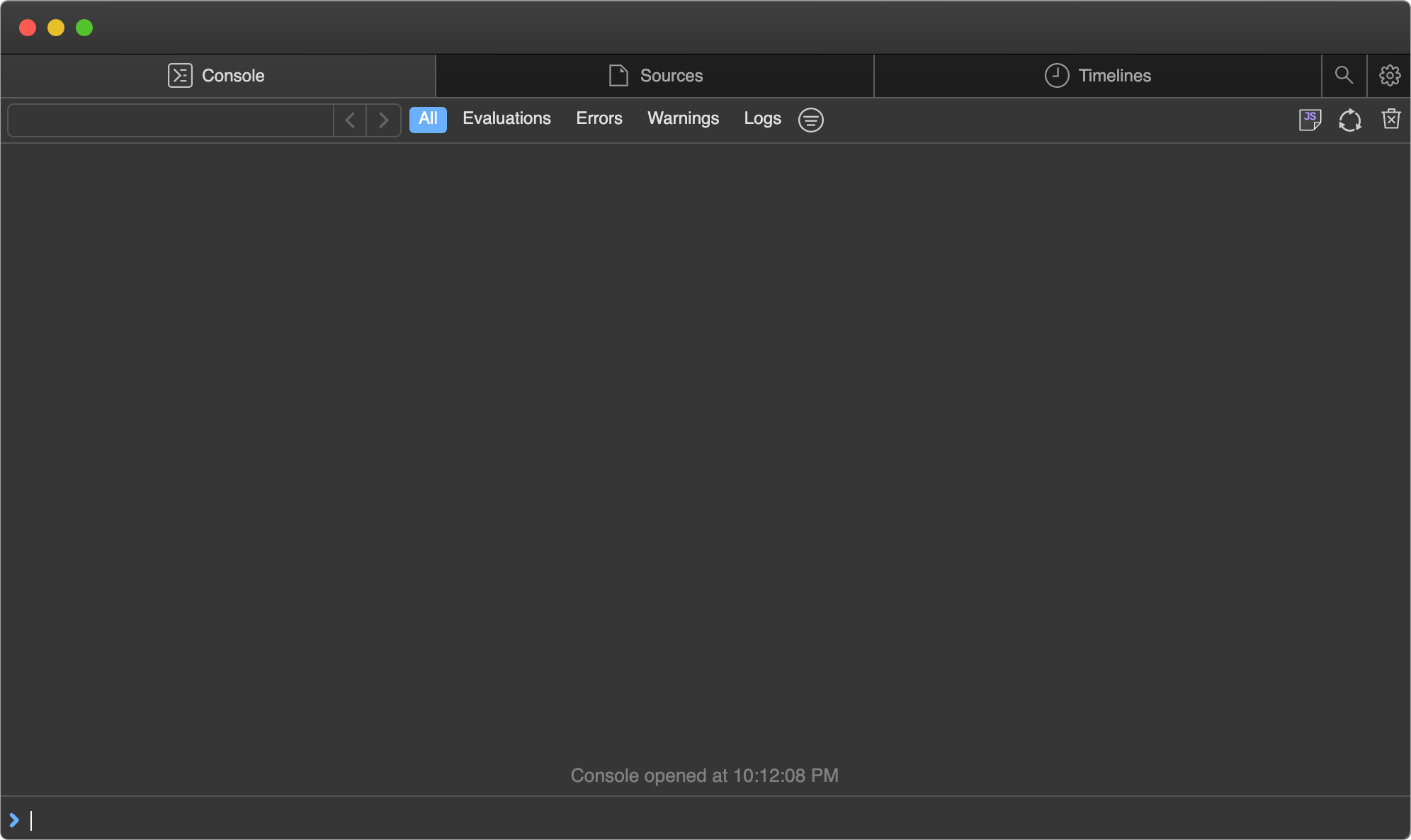
在浏览器中打开提供的 `debug.bun.sh` URL 以开始调试会话。在此界面中,你可以查看正在运行文件的源代码、查看和设置断点,以及使用内置控制台执行代码。
***
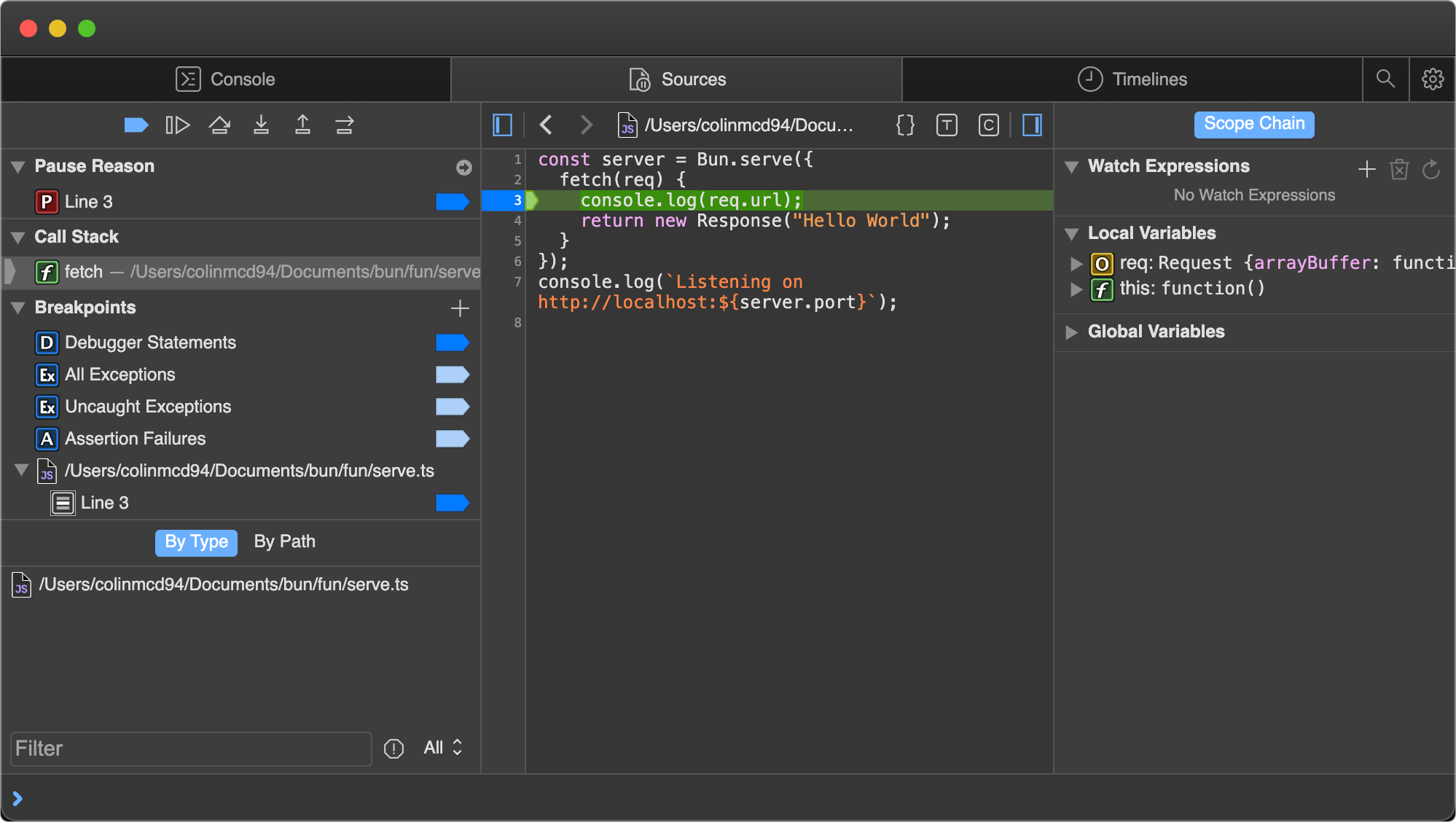
接下来,设置一个断点。打开 Sources(源代码)选项卡,它会显示之前的代码,点击第 `3` 行以在 `console.log(req.url)` 语句上设置断点。

***
然后在浏览器中访问 [`http://localhost:3000`](http://localhost:3000) 向服务器发送 HTTP 请求。页面会挂起,因为程序在你设置的断点处暂停了。
注意界面发生了变化。
***
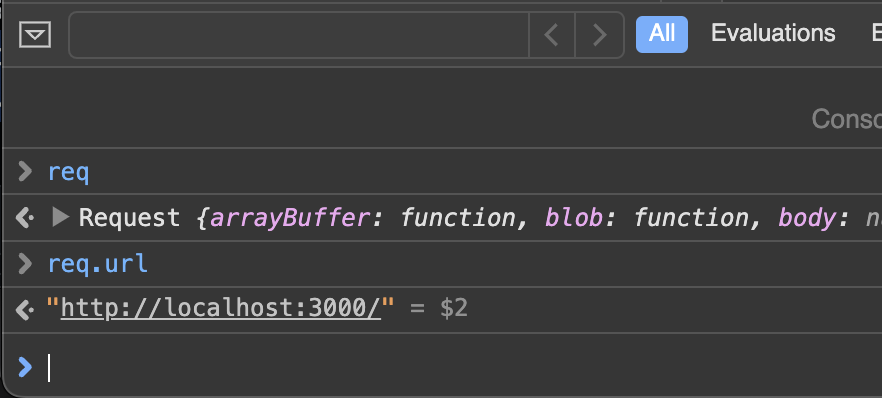
使用底部的控制台在程序的上下文中运行任意代码,并完全访问断点处作用域内的变量。
***
Sources 窗格右侧列出了作用域内的局部变量;展开可查看其属性和方法。截图显示了 `req` 变量。

***
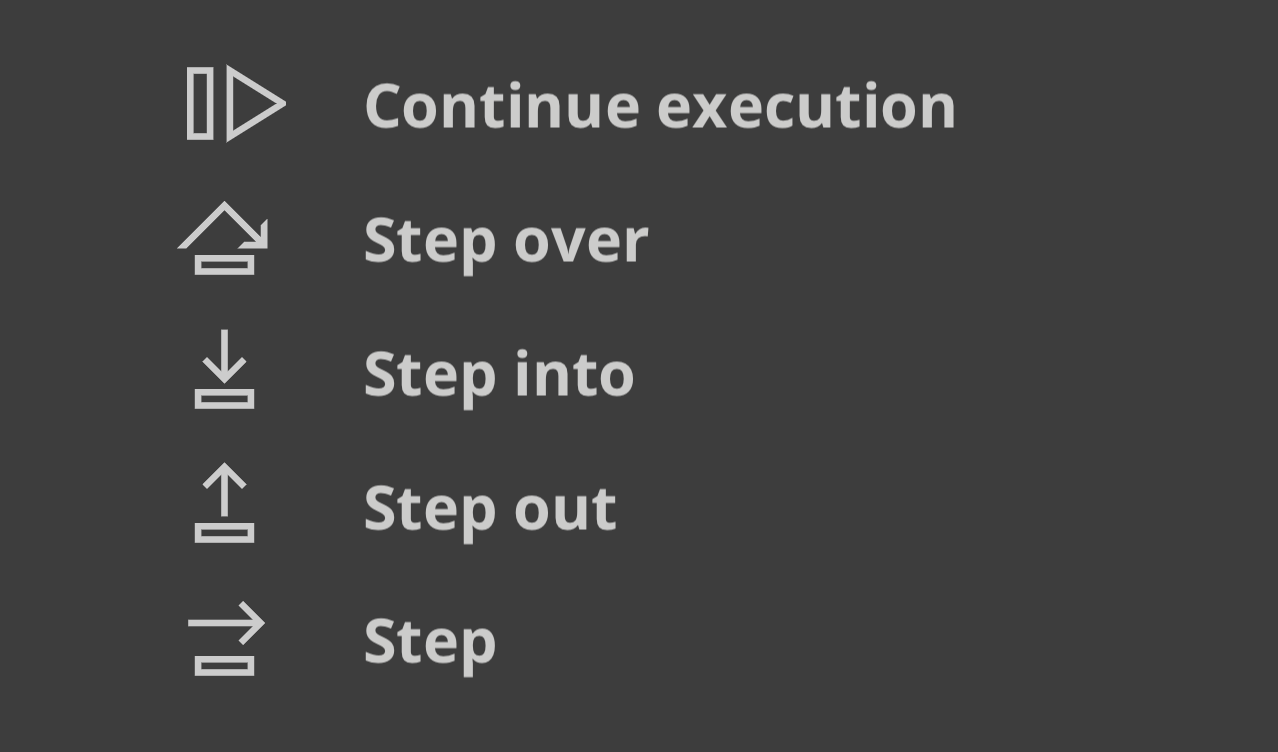
Sources 窗格左上角的按钮控制程序的执行。

***
以下是每个控制流按钮的功能。
* *继续执行脚本* — 运行程序直到下一个断点或异常。
* *单步跳过* — 继续执行下一行。
* *单步进入* — 如果当前语句包含函数调用,则进入被调用的函数。
* *单步跳出* — 如果当前语句是函数调用,完成执行后跳出该函数,返回到调用它的位置。